








Use Cases
Delegate individual admin pages to user groups so you can share the workload without handing out Jira administrator rights.
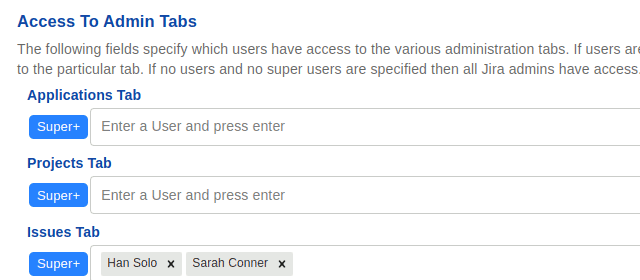
Each example below is a configuration on the Global Configuration screen: a set of pages, and the user groups allowed to use them. Nobody in these examples is a Jira administrator.
1 - Let the service desk manage users and groups
Problem
Every request to add someone to a group, or to check which groups a user is in, goes to the two people who hold Jira administrator. The service desk could handle these in seconds, but giving them Jira administrator would also give them permission schemes, workflows and every other setting in the site.
Solution
Grant the Groups and Users pages to a support-desk group, and nothing else.
The service desk can now search users, see their group memberships, add and remove them from groups, and create and delete groups. Everything else in Jira administration remains closed to them, including Jira’s own Users and Groups screens.
Guard against self-escalation
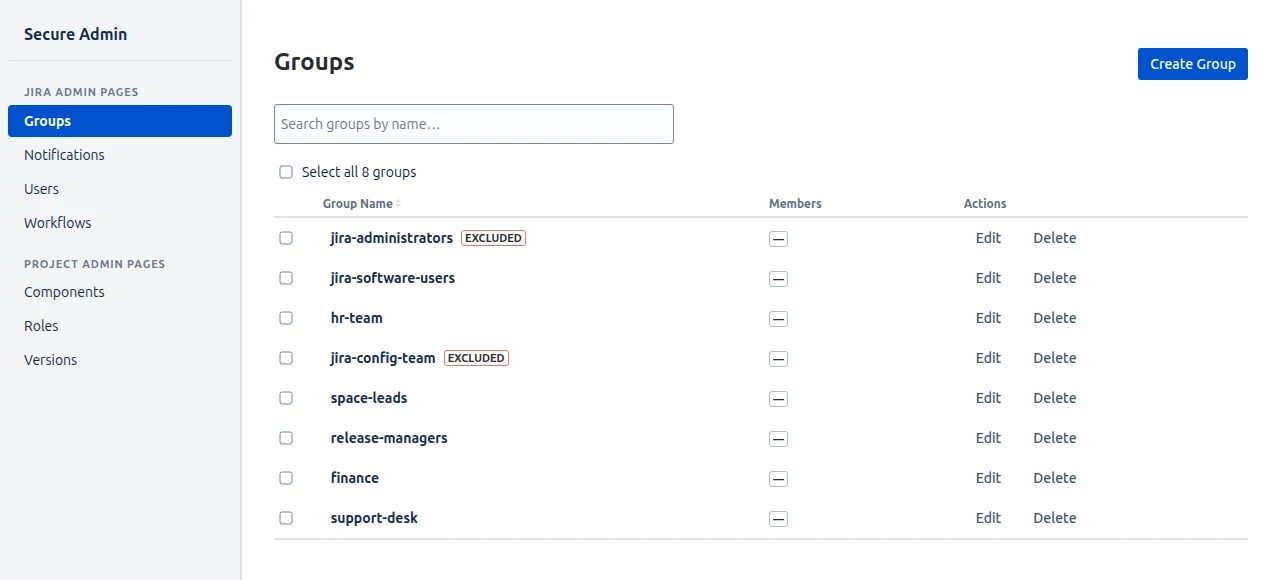
This is the case that most needs the Exclude User Groups list. Anyone who can edit group membership can, in principle, add themselves to a group that grants more access. Add jira-administrators to the exclusion list, along with every group named anywhere else on the configuration screen — jira-config-team, space-leads and so on.
Excluded groups appear on the Secure Admin Groups page with an Excluded marker and cannot be assigned. The service desk manages every other group freely and cannot promote anyone, themselves included, into a privileged one.
2 - Give the configuration team schemes without the rest of the site
Problem
A small team owns how Jira is modelled: custom fields, work item types, screens and workflows. They are competent and they make these changes weekly. They are not the people who should be able to edit permission schemes, manage users, or read system information.
Solution
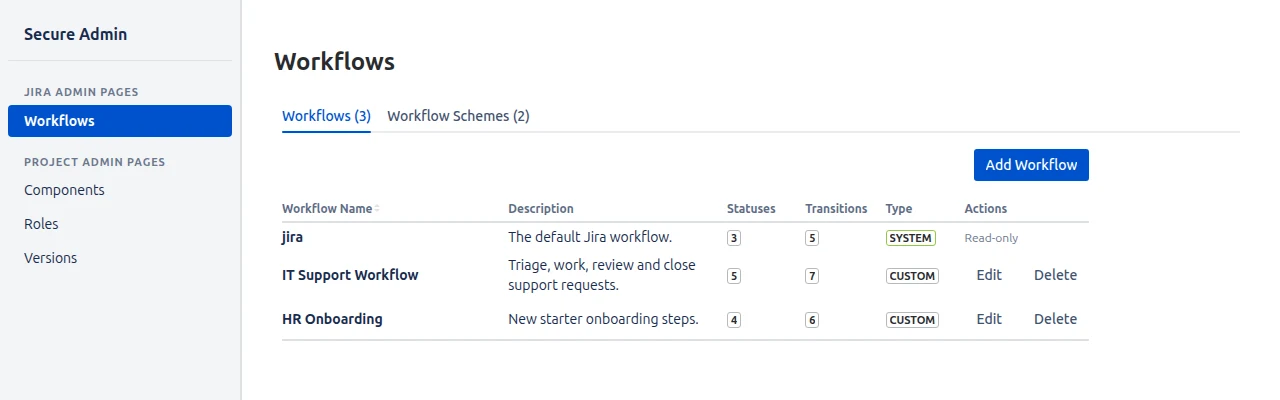
Grant Custom Fields, Fields, Issue Types, Screens and Workflows to a jira-config-team group.
They can list and edit custom fields, add contexts, manage work item types and their schemes, manage screens, tabs and screen schemes, and add, edit and delete workflows and workflow schemes — all from Secure Admin, none of it requiring Jira administrator.
Leave Permissions, Issue Security and Users with no groups at all. Pages with no groups can be used by nobody, which is the safe default the app ships with.
3 - Space leads run their own Spaces
Problem
Space leads constantly need small changes inside their own Space: a new component when the codebase is split, a role membership when someone joins, a version when a release is planned. Centralising this creates a queue for changes that only affect one team.
Solution
Grant the four Space pages — Components, Roles, Screens and Versions — to a space-leads group.
These pages act on whichever Space the user opened Secure Admin from, so a single grant covers every Space a lead works in. Open the Space, choose Secure Admin from the horizontal Space menu, and the pages appear under Project Admin Pages in the left-hand navigation.

Variation
Release management is often a different group from Space leadership. Add a release-managers group to Versions as well. Both groups then manage versions, while only the Space leads manage components, roles and screens.
4 - Onboard a new administrator one page at a time
Problem
A new hire is being trained to take on Jira administration. Granting them the full role on day one risks a mistake that affects the whole site; granting them nothing means they never learn.
Solution
Create a group for the trainee and grant it a single low-risk page — View System Info, which is read-only, is a good first one. As they demonstrate competence, add pages to the group: Fields, then Custom Fields, then Screens, and so on.
Because access is checked live against group membership, each new grant takes effect the next time they load a page, and any grant can be withdrawn just as quickly by removing the group and saving.
The trainee sees only the pages they have been granted — pages they do not have are not shown at all — so the interface grows with their responsibility rather than presenting everything at once.
5 - Separate duties for an audit
Problem
An auditor asks you to demonstrate that the people who manage user access are not the same people who define what that access permits. In a site where everyone doing administration holds Jira administrator, the honest answer is that you cannot.
Solution
Split the pages across two groups that do not overlap:
hr-teamgets Groups and Users — who is in the site and which groups they belong to.jira-config-teamgets Permissions and Issue Security — what those groups are allowed to do.
Neither group can perform the other’s work, and neither is a Jira administrator. Because a page with no groups is usable by nobody, the pages you deliberately left empty are demonstrably closed rather than merely unused.
Add both groups to Exclude User Groups so that neither can add members to the other.
6 - Read-only system information for support staff
Problem
First-line support regularly needs to know the Jira version, the licence tier or a configuration value in order to answer a question or file a useful bug report. Each request interrupts an administrator.
Solution
Grant View System Info to a support-desk group. The page is read-only, so there is nothing to break, and it removes a recurring interruption. Pair it with Notifications if the same team fields “why did I not get an email” questions, which lets them inspect notification schemes without being able to change anything else in the site.
Notes that apply to all of these
- A grant covers a whole page. You cannot grant part of one.
- Secure Admin does not restrict Jira’s own administration screens. Someone who is still a Jira administrator keeps every right they had; the point of these configurations is that they no longer need to be one.
- Groups are matched by name. Rename a group in Jira and you must remove the old name from the configuration screen and add the new one.