

Create custom notifications, watch issues by conditions or filters. Auto add watchers by criteria (components, priorities, filters, JQL, issues…) or on issue creation
Create custom notifications, watch issues by conditions or filters. Auto add watchers by criteria (components, priorities, filters, JQL, issues…) or on issue creation
1. Create issue watcher field: Allows you to add watching by specifying them in the issue create screen.
2. Watch at the project level with a Tracker: Specify the types of events you are interested in and the conditions that need to be met (i.e. only highest priority issues, bugs, particular components, for a particular user …). Notifications are sent when all of these match.
3. Automatically add a user as a watcher: If an issue is created/modified and your conditions are met then the specified users will automatically be added as watchers
Be notified of issues of interest at particular times: Set a timer so that users can be notified when the specified JQL query identifies issues of interest
4. Be notified of issues of interest at particular times: Set a timer so that users can be notified when the specified JQL query identifies issues of interest
Notifications for the first three features are by Email or within Jira and for the last feature, it is Email only.
Examples of some of what you can watch are:
There are two ways to Configure Watch It, on the global configuration page or the project configuration page (available for every project).
The configuration screen (Manage Apps tab and the Watch It section) for Watch It allows you to do the following:
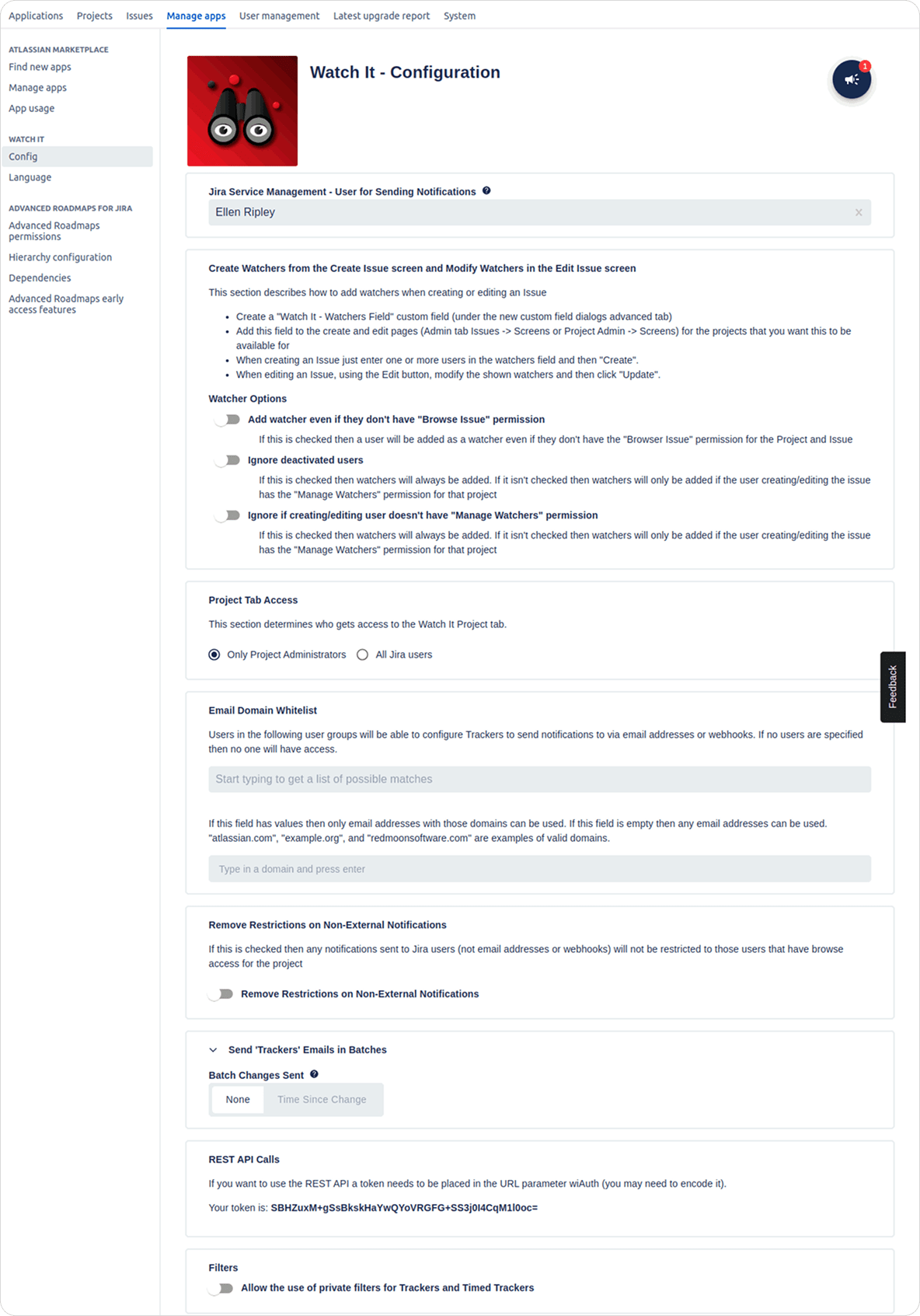
In Jira Service Management, some notifications from users can’t be sent because the user lacks the privileges to send that notification The field allows you to specify the user that is used to send notifications in JSM projects. Use this field if notifications are not being sent to Service Management customers/users.
This section details how to specify a Jira Custom Field that will be used to add/modify watchers when an Issue is created.
To do this you will need to:
There are also three configuration options to configure how the field will work.
Access to the Add Watcher Rules, Timed Trackers and Trackers Project tabs can be limited to Project Administrators only or to all users. If you select All Users then you get the option “Limit non-project admins to seeing only their Trackers”. If this is checked then all Project Admins can see all Trackers/Timed Trackers while other users can only see their own Trackers/Timed Trackers.
If you are using the Watch It REST API then you need to use the token displayed here to authenticate with the APIs.
Watch It has the ability to send notifications to email addresses and webhooks. Because these features can allow potentially confidential information to people who shouldn’t have access the ability to use these is on an opt-in basis. To use this feature add one or more user groups to this field. Any users in these groups will be able to specify email addresses and webhooks for notifications. If this field is blank then no one will be able to specify email addresses and webhooks.
If you are using External Notification Access then this allows you to specify which email domains can be used for Email Addresses. In the example above, the only email addresses that can be used are for the domain redmoonsoftware.com.
This option applies to all notifications except email addresses and webhooks. If this option is enabled then notifications can go to users that don’t have view access on the issue being notified. If this option is disabled then users will only get notifications for issues they have view access on.
This section allows you to specify how emails for Trackers are sent. If “Batch Changes Sent” is set to “None” then emails are sent immediately. If it is set to “Time Since Change” then emails will be collected for a period specified in “Batch Timer Length” unless they are for the events listed in “Events to Exclude from Batching”. If another email is processed before the “Batch Timer Length” time has expired then that timer count starts again. If the event is in the “Events to Exclude from Batching” then the email is sent immediately.
If there are batch settings in the project configuration then that will override this setting for that particular project. If there are batch settings in a Tracker then that will override the project setting and this one.
The project configuration page just allows you to specify options for batching emails sent from the Trackers page.
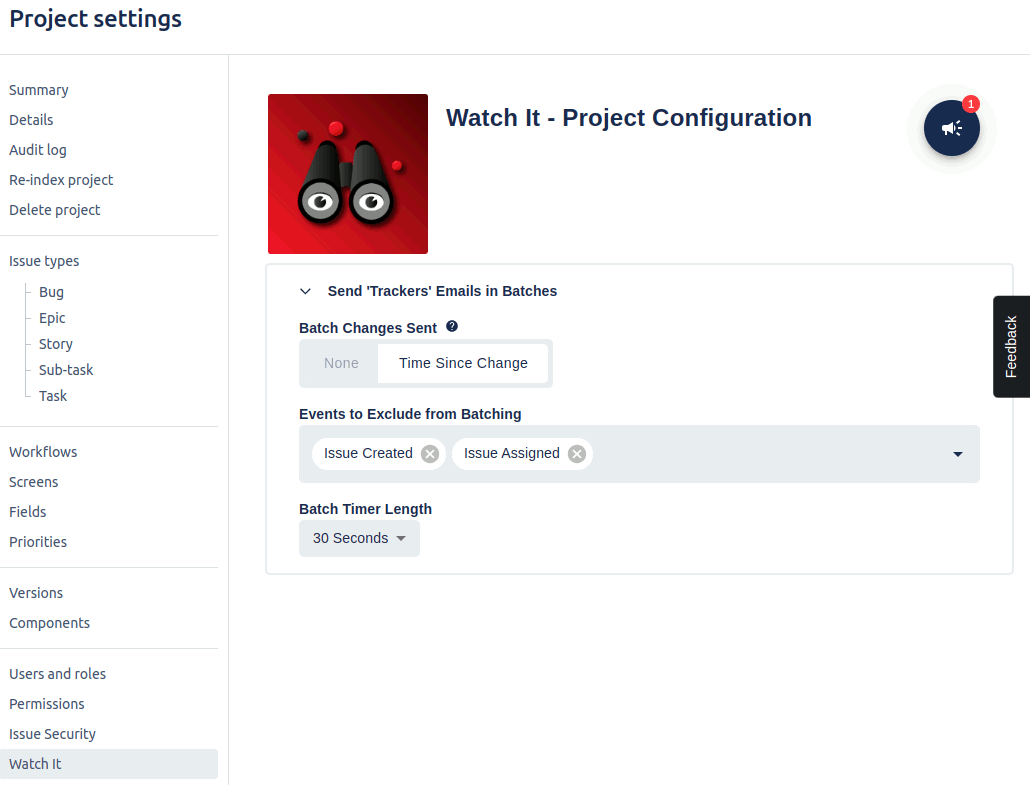
The Project Configuration page allows you to specify how emails for Trackers are sent. If “Batch Changes Sent” is set to “None” then emails are sent immediately. If it is set to “Time Since Change” then emails will be collected for a period specified in “Batch Timer Length” unless they are for the events listed in “Events to Exclude from Batching”. If another email is processed before the “Batch Timer Length” time has expired then that timer count starts again. If the event is in the “Events to Exclude from Batching” then the email is sent immediately.
If there are batch settings specified in the global configuration page then this overrides those settings and they are ignored for this project. If there are batch settings in a Tracker then that will override this setting and the global one.
The Trackers page can be found in Jira Cloud by going to a specific project, click on Add-ons and then WI Trackers and Jira Data Center by going to a specific project and click on the WI icon with a eye on it and a label of WI Trackers.
This tab allows you to define Trackers for issues within a project without having to have the user(s) added as a watcher for every issue. This allows you to change the criteria, add new Trackers or remove old Trackers without having to physically change the watchers for every issue.
Initially, there is just an Add button for adding your first Tracker. The screenshot below shows the screen with multiple Trackers already added.
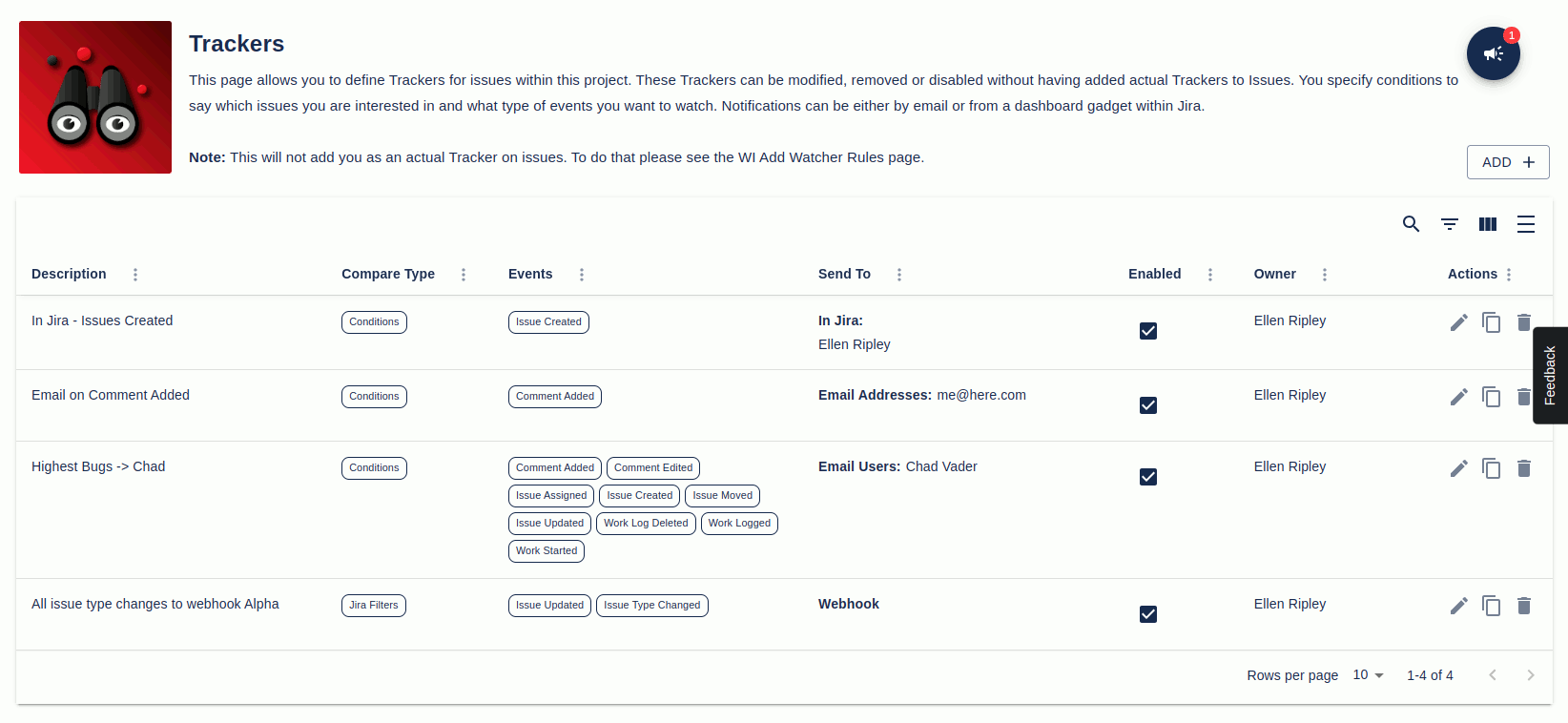
The first of the Trackers above will produce an In Jira notification (displayed in the Watch It dashboard gadget) whenever an Issue with the issue type of Task is created in the Test project. The notification will only be visible to Ellen Ripley.
The second Tracker shown will cause an email to be sent to me@here.com any time a new comment is added in the Test project where the issue type is Task.
The third Tracker will send an email notification to Chad Vader whenever there is a change to any field (including creation) to an issue in the test project and with a priority of Highest
The fourth Tracker will send a webhook notification to Slack whenever there is an issue type change for an issue that matches the filter “Due this week”.
On the right-hand side of each Tracker are two buttons, the pencil for editing and the trash can for deleting the Tracker. Above these is the Add button for creating new Tracker. Below is the screen for adding new Trackers.

At the top of the dialog is a mode selector. This gives you two options: basic and advanced. Basic mode hides some of the fields (Exclude for Users in the screenshot above) shown in advanced mode. For simple setups basic mode is fine but if you want to add more fine-tuning then simply change to advanced mode.
At the top of the screen is the Description field. This is a description of what the Tracker does. This helps identify what the Tracker does in the Trackers screen. The Enabled field specifies if the Tracker will be processed or not. If enabled is not checked then no messages are sent.
Next is the compare type. This gives you the option of using conditions (based on field values and/or the current user) or a Jira filter. If you use the Jira filter then the filter must be public to be selected.
Next, are the conditions used to determine which issues are being watched. There are two types of conditions: Test Field Value and Current User Is. Test Field Value allows you to specify fields (including some custom fields) and the values they are allowed to contain. The example above shows that this Tracker is just for the issue types of Task and Priority of Highest. The Current User option allows you to watch issues being changed by particular users. A combination of multiple conditions can be specified but all conditions must be true before a notification is sent.
Important: A wide range of fields can be used to test a field value, including most custom fields. The main criteria for this is that they are on the create issue page for the current project
An example of a Compare Type of Jira Filter is shown below.

There is an option in the Filters section of the admin configuration page that lets you use private filters. If this is turned on then the filters displayed are:
Next is a list of events that are related to this Tracker. At least one event in the “Only Notify for” must be selected. The events description should be enough to understand what is happening. One exception to this is the Issue Update event. This covers any updates to fields in an issue, this includes the events Issue Type Changed, Priority Changed and Status Changed, but not comment added or comment edited.
The next field is the Notification Type. This can be either Email, In Jira or Webhook.
If the Notification Type is email then the following options are available.

The fields “Send Email to Users”, “Send Email to Addresses” and “Send Email to Groups” determine who will get the email. You must have at least one of these fields. The first is a list of individual Jira users that will receive the email. The second is a list of email addresses that will send the email. You need to have “External Notification Access” enabled in the configuration to use this. Lastly is the Send Email to Groups field. Any users in the groups specified will receive the email. You can also optionally exclude users from the Jira User Groups.
Next is the email prefix. This is an optional field and any text will be placed before the subject line in the email. If an email prefix is also defined in Jira (for the outbound email handler) then the Jira prefix will appear first, then the Watch It prefix and then the subject. After this is the Compact Subject checkbox. This allows you to have a smaller version of the email subject with just the bare minimum details.
Under the Compact Subject field is the “Send ‘Trackers’ Emails in Batches” section. If “Batch Changes Sent” is set to “None” then emails are sent immediately. If it is set to “Time Since Change” then emails will be collected for a period specified in “Batch Timer Length” unless they are for the events listed in “Events to Exclude from Batching”. If another email is processed before the “Batch Timer Length” time has expired then that timer count starts again. If the event is in the “Events to Exclude from Batching” then the email is sent immediately.
If there are batch settings specified here then that overrides settings in the project and global configuration pages. If there are no batch settings in a Tracker then the project and/or global batch settings will be used (if there are any).
At the end is a list of “Also Include Fields”. This will include those field values on the email message. These are optional.
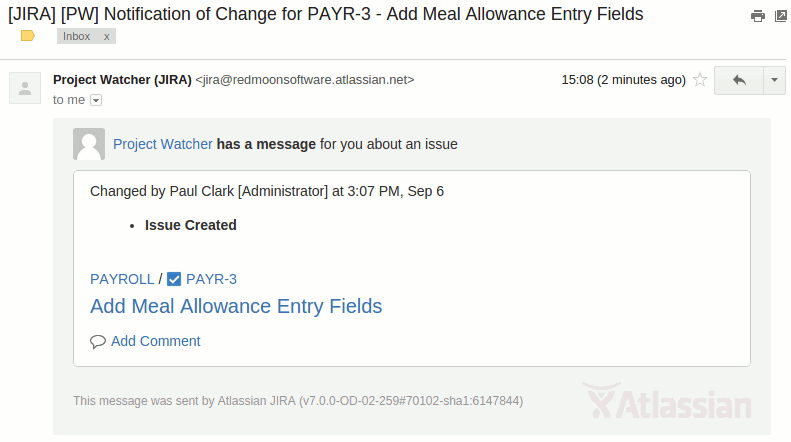
Below are some example emails. The screenshots show it is from Project Tracker because the user was created before the name of the plugin was changed to Watch It.
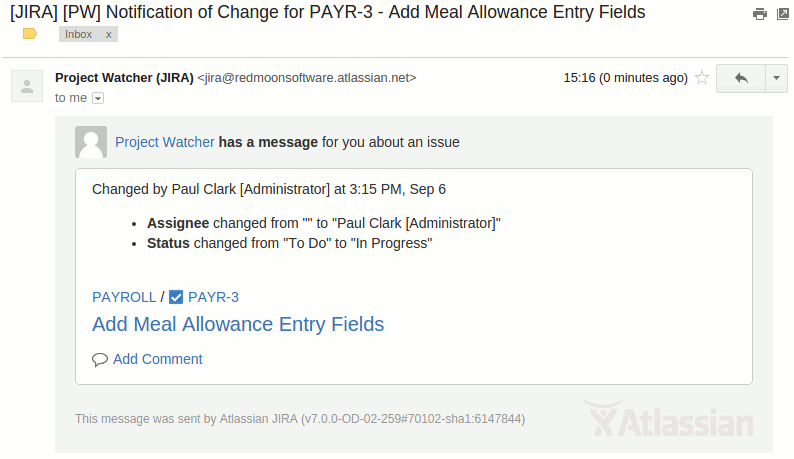
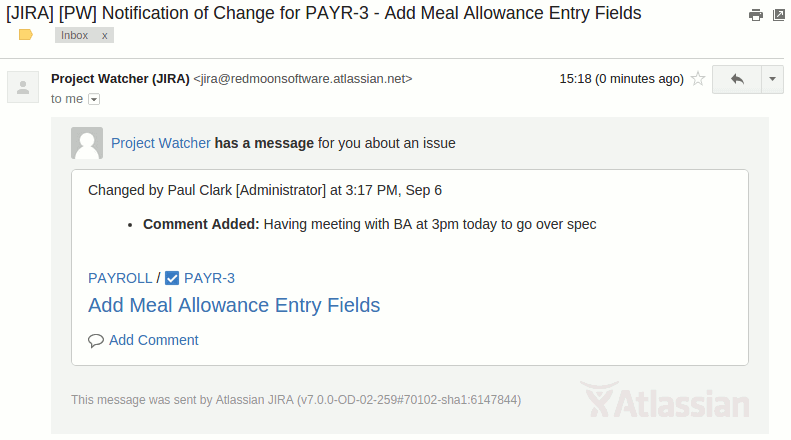
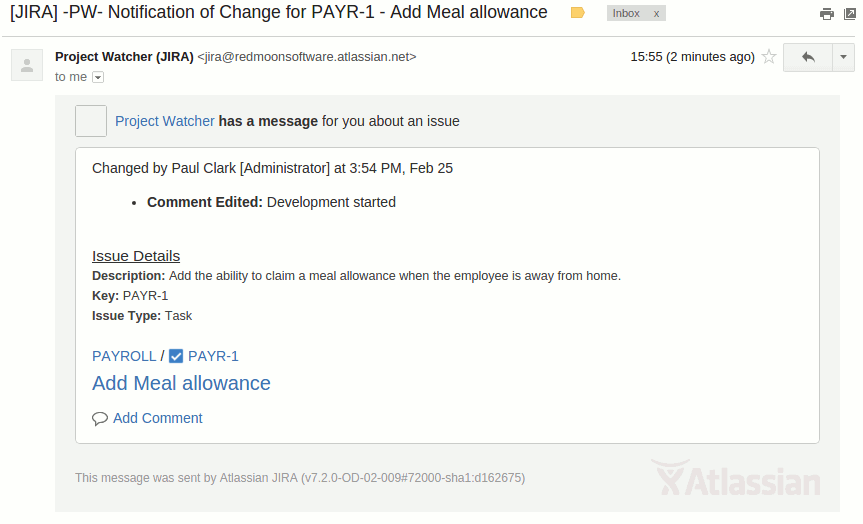
If the Notification Type is In Jira then the following options are available.

Show for Users is a list of users that will receive the In Jira notification. After this is a list of additional fields (only available in advanced mode) to include in the notification. These notifications will be displayed within a Jira dashboard gadget.
If the Notification Type is Webhook then the following options are available.

The webhook payload is rendered with Velocity 1.7. The payload can accept Velocity syntax including conditionals and variables to reference the issue fields. The fields that can be referenced are:
The webhook notification produced from the example Slack Tracker looks like this:
The [COMMENT EDITED: My modified comment] – Changed by Paul Clark at 6:48 PM, Jul 24 for issue TEST-2 Workflows and statuses
To view In Jira notifications you need to add a new gadget to the dashboard.
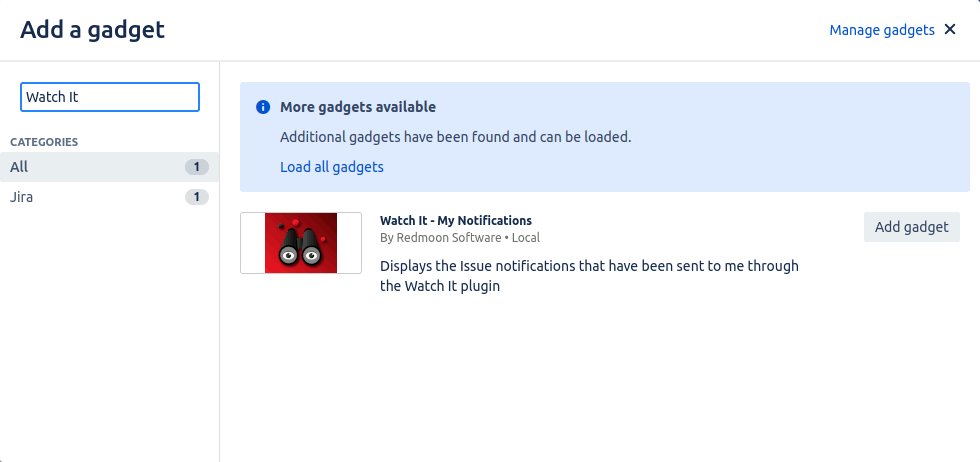
Once the gadget has been installed the In Jira notifications will be showning within the dashboard.
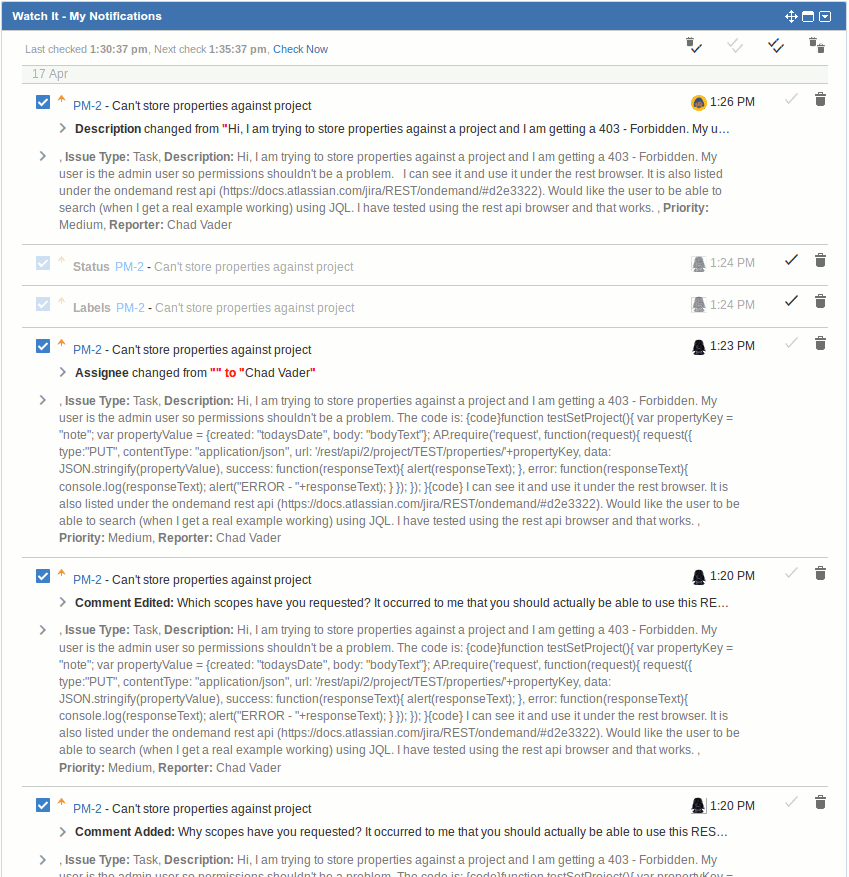
At the top right are four buttons (left to right)
The buttons for deletions and marking notifications read only apply to notifications visible on the screen. By default, only the last twenty notifications are initially displayed. To see more there is a Show More link at the bottom of the list (only displayed if there are more), which will show another twenty.
At the top-left are details of when the last time new notifications were checked for when the next time new notifications were checked for and a link to force the checking for new notifications. The time between automated checks varies depending on the time of the day. Between 8 am and 6 pm, checks are done every 5 minutes, between 6 pm and 9 pm checks are done every fifteen minutes and the rest of the time they are done every hour.
Notifications are grouped under the date they occurred. The notifications shown are initially in a minimal format. Hovering over text will show the full text and clicking on the “>” characters will expand the details to allow you to read all the information easily. On the right of each notification are a read button (to mark the notification read/unread) and a delete button. The delete button will permanently delete the notification, although there is a link shown at the top of the gadget (displayed for 10 seconds) to undo a delete.
Read notifications reduced in size and dimmed out.
Because of constraints of cloud storage, old data will be deleted using the following logic:
The Watchers page can be found in Jira Cloud by going to a specific project, click on Add-ons and then Add Watcher Rule and Jira Data Center by going to a specific project and click on the WI icon with a plus on it and a label of Add Watcher Rule.
This tab allows you to define rules that automatically add watchers to issues when they are created and/or modified. A user will only be added if they are not already a watcher. It may take several seconds before the watchers are added. If you have specified to add a watcher on update and that user removes themselves as watcher then they will be added back again when the issue is changed.
Initially, there is just an Add button for adding your first rule. The screenshot below shows the screen with multiple watchers already added.
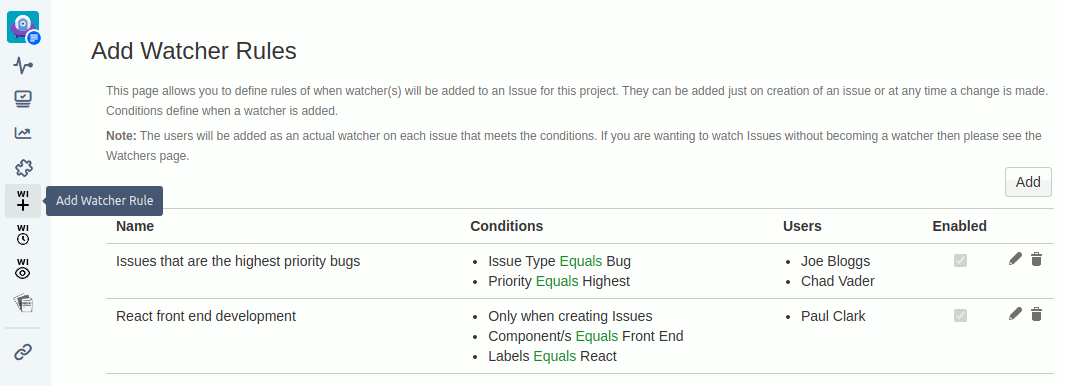
In the first example above Joe and Chad will be added as watchers when an issue is created or modified and that issue has an issue type of Bug and a priority of Highest. So if an issue is a Story with a priority of Highest and a user changes the issue type to a Bug then Joe and Chad will be added as watchers. If an issue is created with a type of Bug and priority of Highest then Joe and Chad will be added as watchers.
In the second example, Paul will be added as a watcher only when issues are created with the component Front End and the label React. So if a user creates an issue with a component of Front End and a label of React then Paul will be added as a watcher. If an issue with a component of Front End and a label of React is modified then Paul would NOT be added as a watcher.
New rules can be added by clicking on the Add button, which pops up the dialog below.
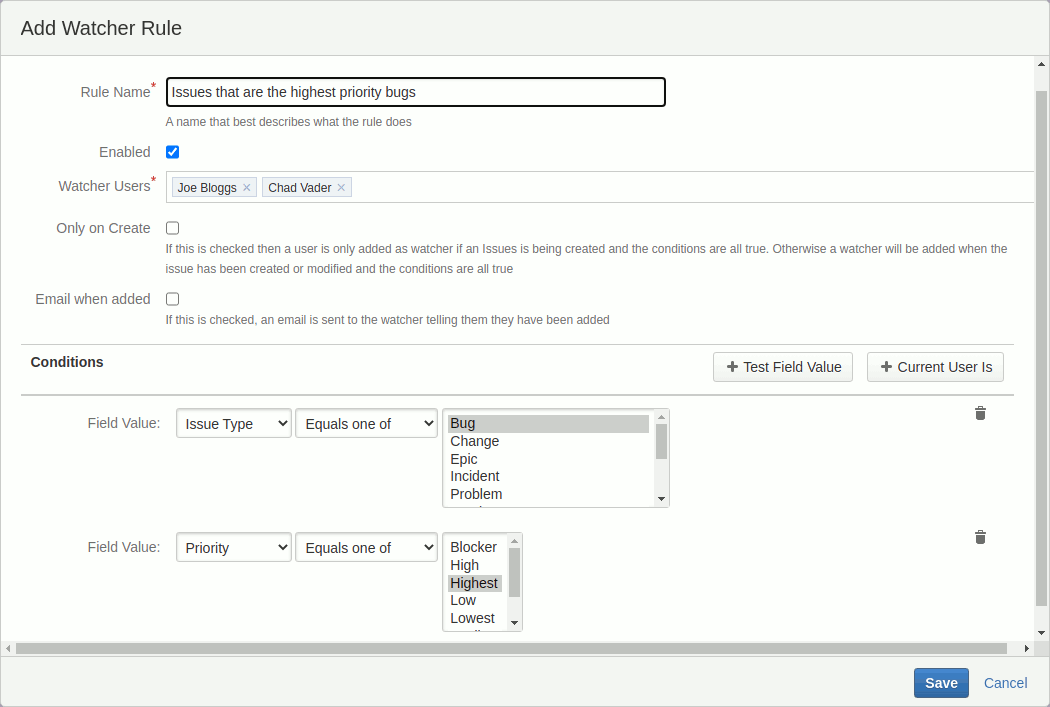
At the top of the screen is the name of the rule, so the rule can be easily identified, followed by the enabled checkbox. Any rules with enabled unchecked will not be run. Next, the Watcher Users field defines which watchers to add.
The Only On Create checkbox should be checked if you only want watchers to be added when an issue is created. If this is not checked then watchers will be added whenever the issue is created or modified and the conditions are all true. Under this is the “Email when added” checkbox. If this is checked then an email notification will be sent to each new watcher after they have been added to the issue.
Next, are the conditions used to determine which issues are watchers will be added for. There are two types of conditions: Test Field Value and Current User Is. Test Field Value allows you to specify fields (including some custom fields) and the values they are allowed to contain. The example above shows that this watcher is just for the issue types of Bug. Current User Is allows you to watch issues being changed by particular users. A combination of multiple conditions can be specified but all conditions must be true before a notification is sent.
Important: A wide range of fields can be used to test a field value, including most custom fields. The main criteria for this is that they are on the create issue page for the current project
The Timed Trackers page can be found in Jira Cloud by going to a specific project, click on Add-ons and then WI Timed Tracker and Jira Data Center by going to a specific project and click on the WI icon with a clock on it and a label of WI Timed Tracker.
This tab allows you to defined timed jobs that either send an email notification or add comments for issues that are returned from the JQL query. For example each day you may wish to be notified of all highest priority bugs that created that day. At this stage, notifications are one per issue. Below is a screenshot of the WI Timed Tracker screen.
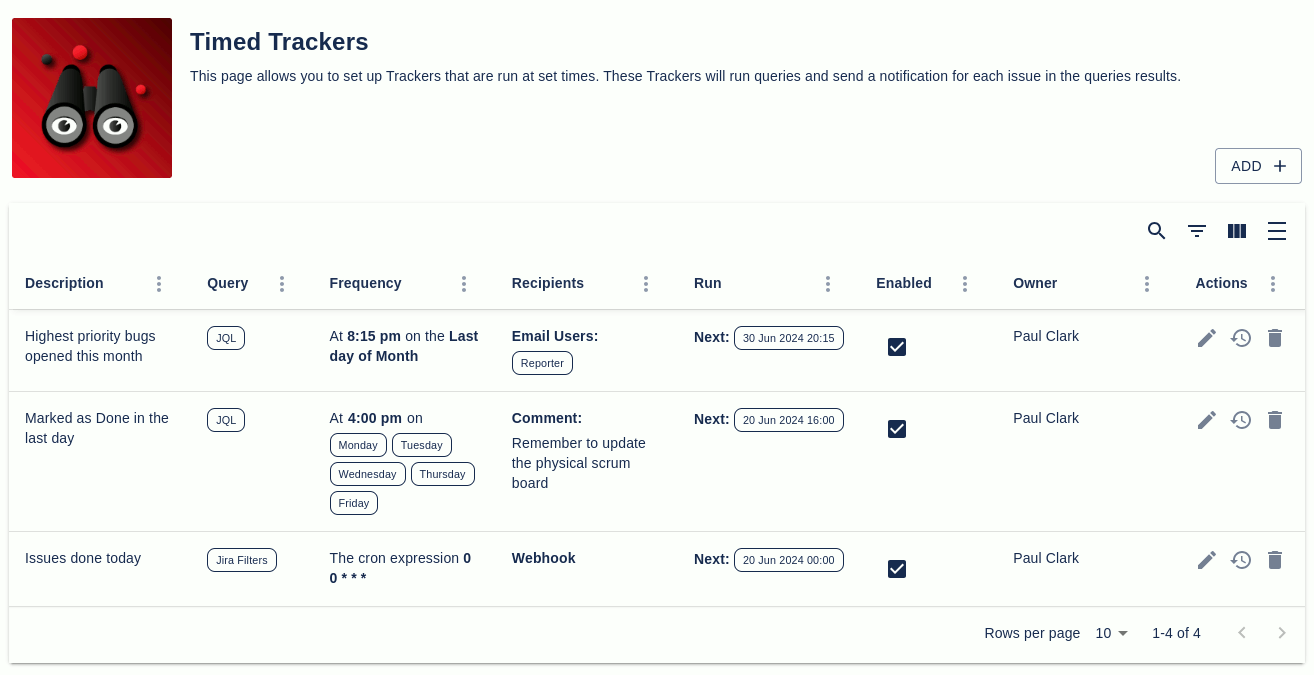
Each Timed Tracker has a description, query, frequency, recipients, when it will next run, when was it last run, if it is enabled, who the owner is and three buttons to edit the Tracker, look at the last run history (see below for more details) and delete the Tracker.
New Timed Trackers can be added by clicking on the add button. An example of the dialog that is opened is shown below. At the top right corner is a mode select box. This has values of Basic and Advanced. The advanced mode shows additional fields to what is shown below, which can be seen in the
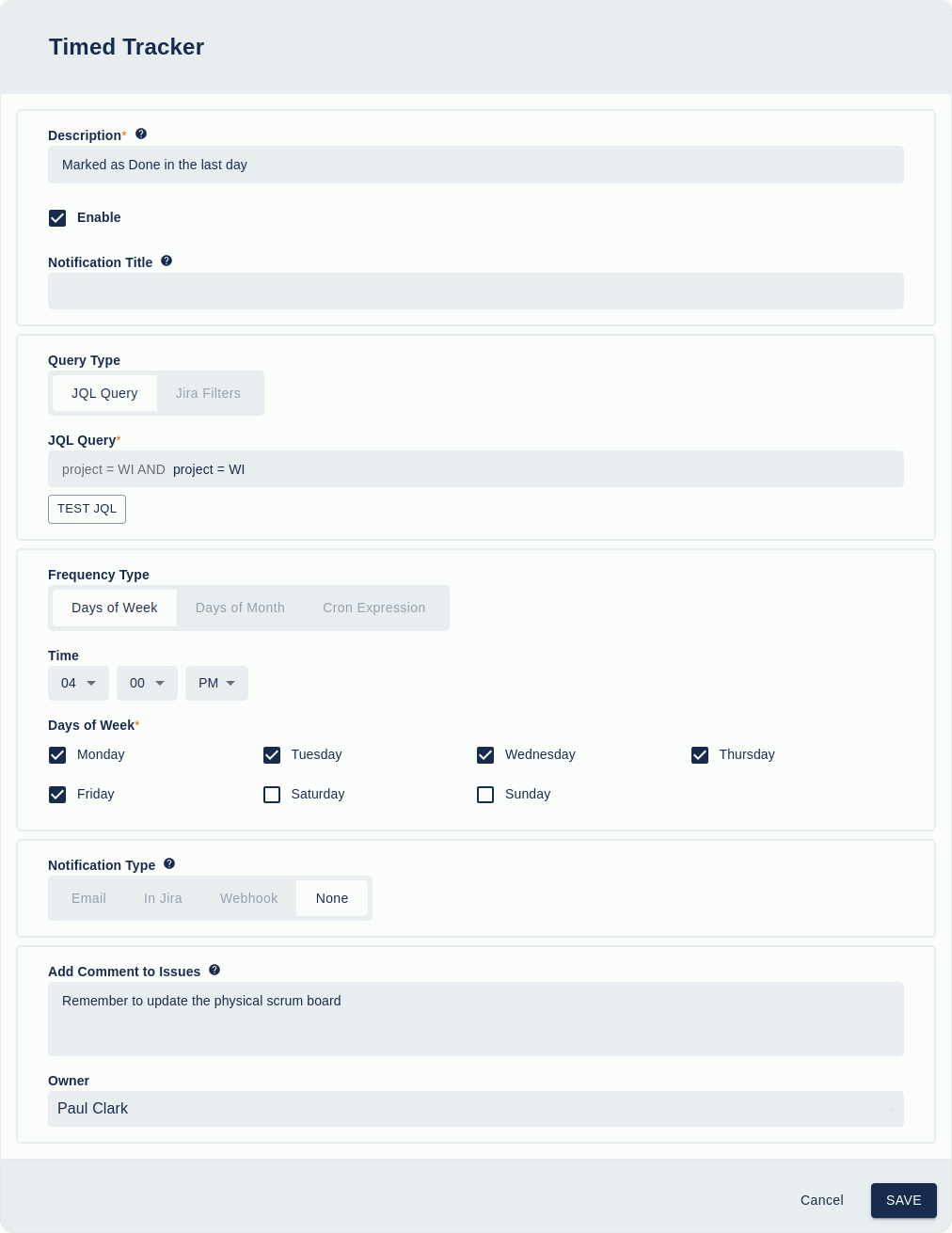
At the top of the dialog is the description that is used to allow easy identification of the Tracker in the Timed Tracker tab. Next is the enabled checkbox that allows you to stop the Tracker from being run when it is not required. The notification title is the heading text that is displayed in the email notification (If this field is blank then the description is used instead).
The Query Type allows you to specify how the issues will be identified. If you select “JQL Query” then you need to enter the JQL to retrieve the issues. The JQL is automatically restricted to the current project. Any additional JQL can be entered and the Test button can be used to see if the JQL is valid. If you specify “Jira Filters” then you get a selection of public filters to choose from.
For both JQL Query and JQL Filters you need to specify a Run as User. This is the user that the JQL is run for so the user needs to have enough permissions to get the required results. This user is also used to send any notifications so if you get a “No recipients were defined for notification” error then this user may not have the privileges to send the notification to the specified users OR if the specified user is the Run as User.
The frequency section allows you to specify how often the Tracker will be run. The different frequency types are Days of Week, Days of Month and Cron Expression. The latter two will be described below. When using Days of Week you need to select the time to run at and which days of the week to run on.
The notification type allows you to receive the notification either as an email, within Jira, sent to a webhook or no notification at all (if you just want to add a comment). See the cron example below for In Jira options.
For all notification types, you can add a comment for the given issue.
Next is an example of Days of Month frequency type.

For this dialog, I will just describe what is different from the previous example.
The notification type above to via email. Emails can be sent to Issue Users (Assignee, Reporter, Watcher), to Jira users, to user groups, and to email addresses. To use email addresses you will need to enable this feature on the Watch It configuration page. You can specify domain whitelists to limit the email addresses that can be used.
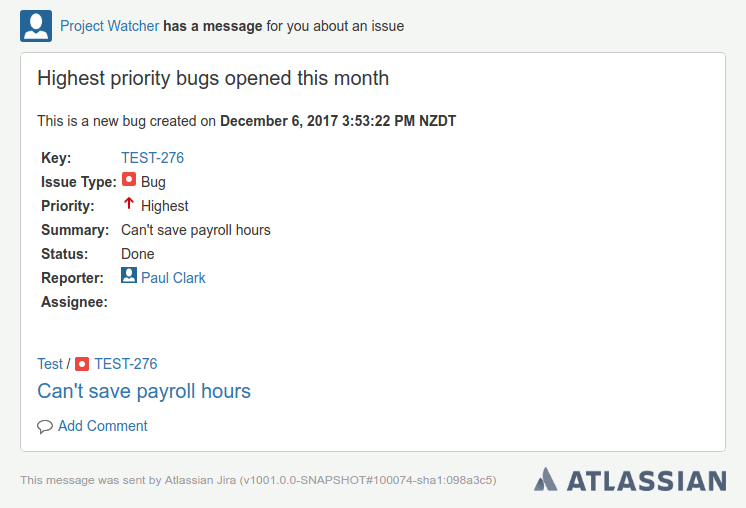
The Text and HTML Notification allows you to enter a message that is displayed in the notification between the Notification Title and a description of the Issue. There are both HTML and Text messages to cater to users who can only receive text emails (or choose to in Jira).
Both messages are Velocity 1.7 templates so they can accept Velocity syntax including conditionals and variables to reference the issue fields. The fields that can be referenced are:
$baseUrl: The URL for Jira
$notificationTitle: The Timed Trackers notification title or description if no notification title was given
$helper: A helper class that allows you to check if a value is null or blank or not ($helper.isBlank($i.key), $helper.isNotBlank($i.key) )
$i.assigneeDisplayName: The users full name
$i.assigneeIcon16x16: The assignees image URL (16×16 pixels)
$i.assigneeIcon24x24: The assignees image URL (24×24 pixels)
$i.assigneeName: The assignees Jira name
$i.baseUrl: The URL of your Jira instance (i.e. https://redmoondev.atlassian.net)
$i.components: A list of components. Each item in the list has a name
$i.created: The date the issue was created. Also available as a string formatted in a long, medium and short version (i.e. $i.createdLongStr=9 November 2017 12:03:46 PM, $i.createdMediumStr=9/11/2017 12:03:46 PM and $i.createdShortStr=9/11/17 12:03 PM)
$i.creatorDisplayName: The user’s full name that created the issue
$i.creatorIcon16x16: The issue creators 16×16 pixel image URL
$i.creatorIcon24x24: The issue creators 24×24 pixel image URL
$i.creatorName: The creators Jira name
$i.description: The issues description
$i.dueDate: The due date of the issue. It also is available as a string formatted in long, medium and short versions
$i.fixVersions: A list of fixed versions. Each item in the list has a name and description.
$i.id: The id number of the issue
$i.issueTypeDescription: The description of the issue type
$i.issueTypeIconUrl: The icon of the issue type
$i.issueTypeName: The issue type name
$i.issueTypeSubtask: Specifies if the issue type is a sub-task or not (either true or false)
$i.key: The key of the issue (i.e. TTM-53)
$i.labels: A list of strings, one for each label
$i.priorityIconUrl: The icon of the priority
$i.priorityName: The name of the priority
$i.projectIcon16x16: The 16×16 pixel image URL for the project
$i.projectIcon24x24: The 24×24 pixel image URL for the project
$i.projectId: The id number of the project
$i.projectKey: The key of the project (i.e. TTM)
$i.projectName: The projects name
$i.reporterDisplayName: The full name of the reporter
$i.reporterIcon16x16: The 16×16 pixel image URL for the reporter
$i.reporterIcon24x24: The 24×24 pixel image URL for the reporter
$i.reporterName: The Jira name for the reporter
$i.statusDescription: The description of the status
$i.statusName: The name of the status
$i.summary: The summary of the status
$i.updated: When the issue was last updated. It also is available as a string formatted in long, medium and short versions
The email notification produced from this Timed Tracker will look like:
The last Frequency type is Cron Expression.

Cron Timed Trackers have a Cron Expression field. This allows you to specify the run times using a Unix style cron expression. For instance, the cron expression above says to run every day at midnight.
This Timed Tracker also has a notification type of In Jira. Any notifications are added to the My Notification gadget on the dashboard for the user(s) mentioned in the Show for Users field. The notification can also optionally include the fields Description, Issue Type, Reporter and Priority (the Also Include Fields options are only available in Advanced mode).
Each time a Timed Tracker is checked a corresponding log is created. These can be examined by clicking on the clock like icon to the right of the Timed Tracker on the Timed Trackers screen. This will open a dialog like that shown below.
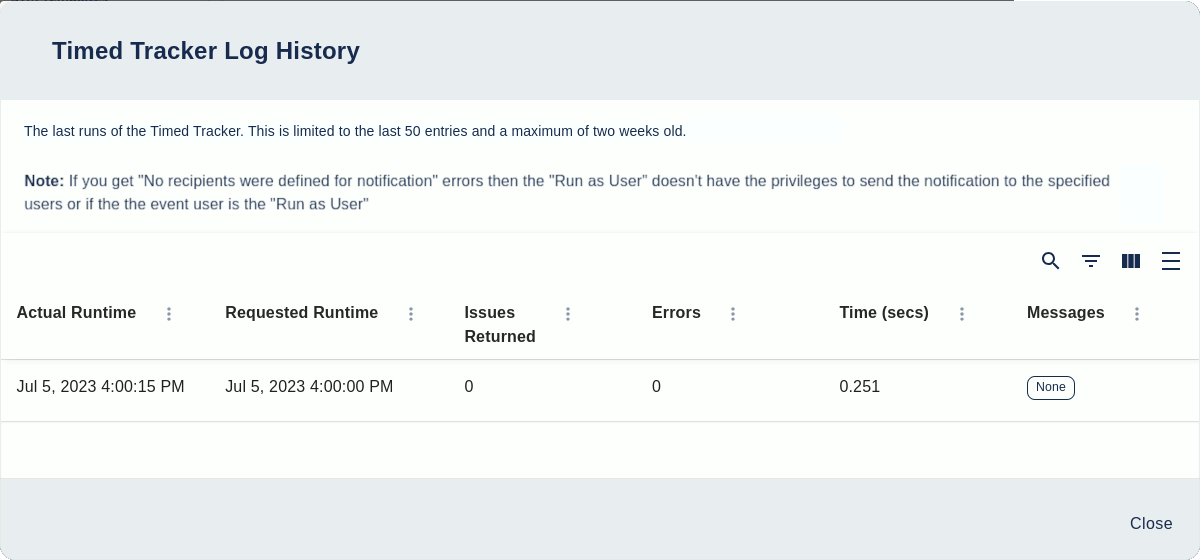
This dialog shows the log history, up to the last fifty items and records no older than two weeks. Logs older than two weeks are purged.
The logs tell you when the Timed Tracker was run, when it was scheduled to run, the number of issues the JQL returned, how many errors there were, the time it took to run and any error messages produced.
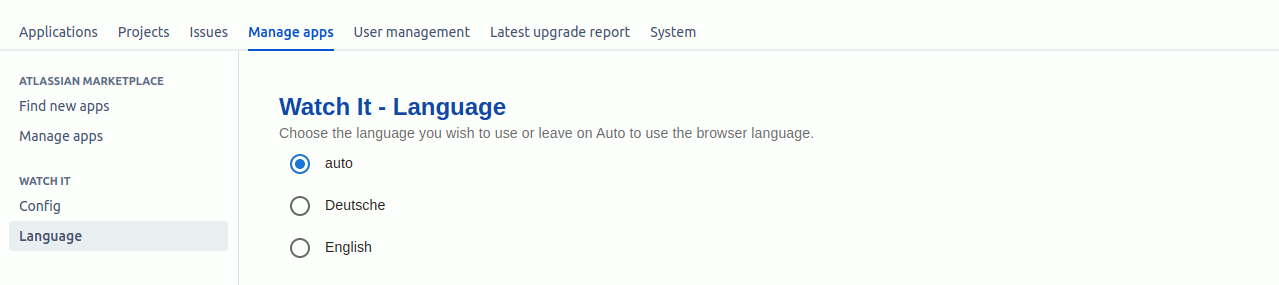
The Language Support section allows you to choose a language to use or get the App to choose for you. Watch It comes with two languages pre-installed: English and German.
The Import/Export page allows you to transfer Trackers, Time Trackers and Add Watcher Rules beteen Watch It instances.
Migration
This facility can be used to migrate from Watch It on Jira data center to Watch It on Jira cloud. Migration can be done by doing the following steps
The image below shows the Import/Export page in the Watch It configuration section of Jira cloud. Jira data center is similar, but only has the export option
